
Posture and ergonomics are not about holding one perfect position all day. Your posture is not a single position you need to hold perfectly all day. For most people, the more useful goal is to build a workstation and daily routine that lets you change position, move regularly, and work comfortably without repeatedly loading the same area.
The short answer
Start with three things: make the screen and chair fit your body, keep your feet supported, and change position frequently. Do not treat one “perfect” posture as a cure for back or neck pain.
Evidence note: The workstation principles in this guide are consistent with the U.S. Occupational Safety and Health Administration computer workstation guidance, which emphasizes adjustability, neutral positioning and changing posture rather than one universal “perfect” position.
What good ergonomics actually means
Ergonomics is the process of fitting a task and its environment to the person doing it. In a desk setup, that means adjusting the chair, desk, screen, keyboard, mouse and working habits so that you can work efficiently while varying your position throughout the day.
Start with the chair
Your chair should let you sit with your feet supported, your pelvis stable and your knees comfortable. Seat depth matters because a seat that is too deep can prevent you from using the backrest effectively, while a seat that is too short may provide inadequate support.
- Adjust seat height so your feet can rest securely on the floor or a footrest.
- Use the backrest rather than trying to hold your torso rigidly upright.
- Choose adjustable lumbar support if it improves comfort. If your chair has none, a lumbar support pillow is a low-cost add-on.
- Leave enough space behind the knees to avoid pressure.
Set the screen before fine-tuning the keyboard
Screen position strongly influences where your head and neck spend time. Place the display so that you can read it without repeatedly bending your neck forward. If you use two monitors, position the primary screen in front of you rather than forcing frequent rotation.
Keyboard, mouse and arm support
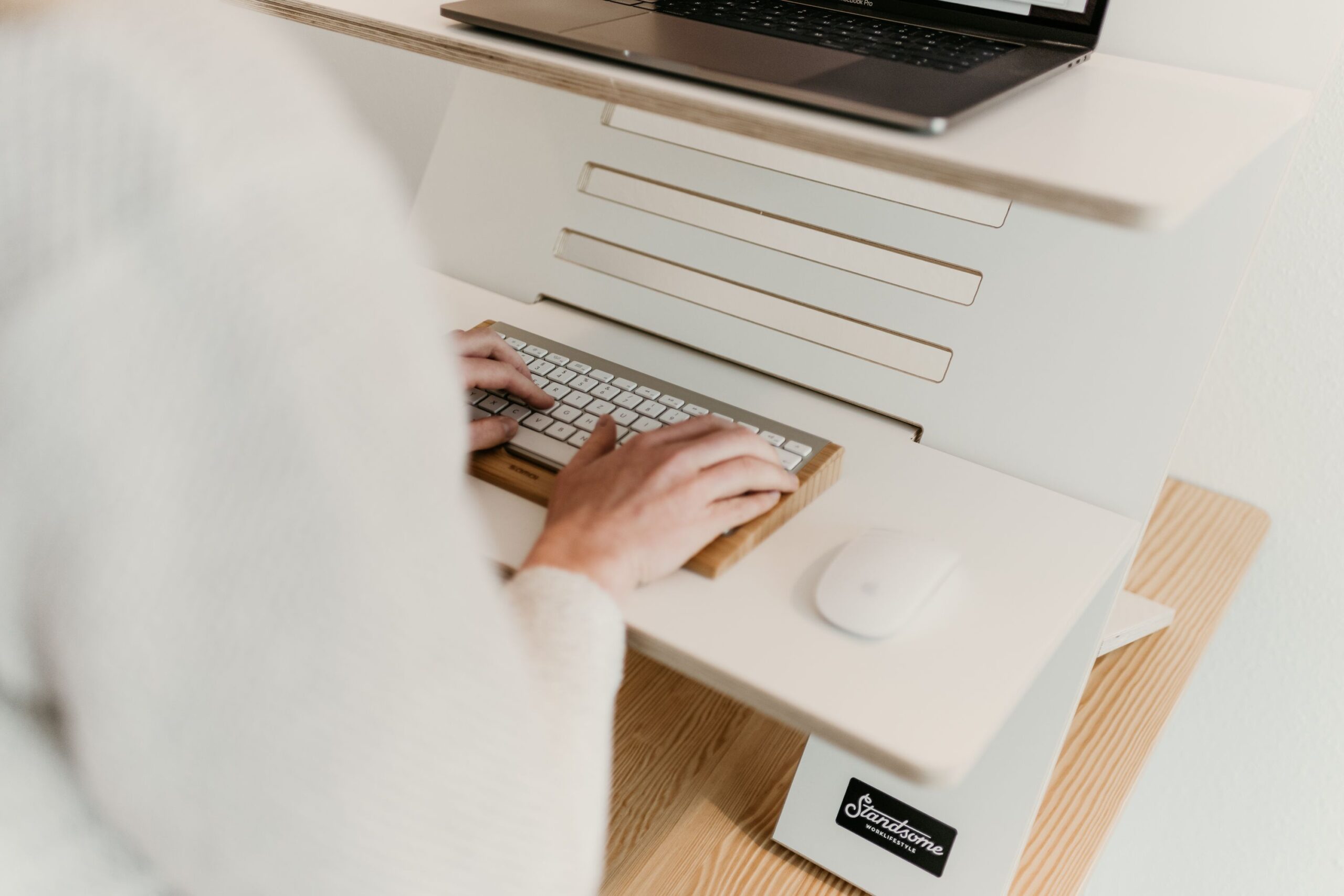
Keep the keyboard and mouse close enough that you do not need to reach continuously. Your shoulders should be able to relax rather than being held elevated. Armrests can help when they are adjusted to support the forearms without pushing the shoulders upward.
The most overlooked factor: movement
Even a carefully adjusted workstation does not turn prolonged sitting into a neutral activity. Alternate between sitting, standing and short periods of walking when your work allows it. Brief movement breaks are often more practical than trying to maintain one ideal position for hours.
A simple workstation checklist
| Check | What to look for |
|---|---|
| Feet | Stable support on floor or footrest |
| Chair | Comfortable height, depth and back support |
| Screen | Easy to view without sustained neck bending |
| Keyboard | Close enough to avoid prolonged reaching |
| Mouse | Within easy reach of the working hand |
| Movement | Regular changes of position during the day |
When a posture problem may need more than a new product
An ergonomic accessory can improve the environment, but it cannot diagnose or treat an underlying medical condition. Persistent, worsening or function-limiting pain deserves appropriate clinical assessment. Seek prompt medical care for severe or rapidly worsening symptoms, significant weakness or numbness, loss of bladder or bowel control, or other urgent symptoms.
Choosing ergonomic products
Buy the adjustment you actually need rather than collecting accessories. A chair with useful adjustment may solve a problem that a lumbar cushion cannot. A monitor stand may be more useful than a posture corrector if your screen is simply too low. Evaluate fit, adjustability, return policy, durability and total cost before buying.
Ready to improve your setup?
Start with the part of your workstation that causes the clearest problem, then compare products using the criteria above.